
Free Poll Templates: The Complete Guide to All 9 Poll Types in Whocan
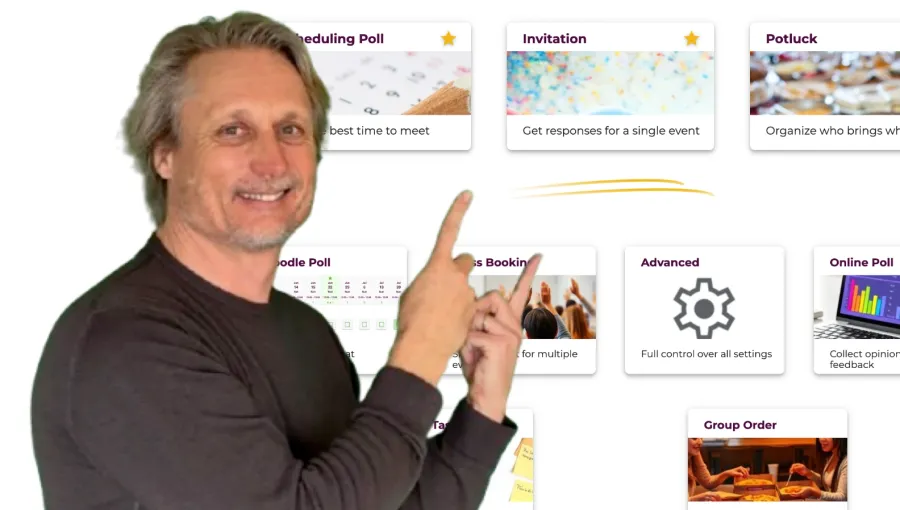
Whocan has nine poll templates. They look like nine different tools, but under the hood they are nine pre-configured versions of one engine. Each template is a curated set of settings and answer formats that fits one specific situation — scheduling a meeting, sending an invitation with RSVP, organizing a potluck, running a quick opinion poll, and so on.
This guide goes through all nine, end to end. For each template you get:
- what the template does and the kind of problem it solves;
- the actual settings turned on for that template, including the advanced ones;
- the answer formats voters get to use;
- real-world situations the template covers (drawn from the 57,445 polls that ran on Whocan in the last 12 months);
- the closest alternative tools and what they leave out.
If you want to skip the explanation and pick a template, start a poll here and switch the template later if you want — Whocan never asks you to sign up.
The idea behind templates
There’s that moment when you realize: the tool you need simply doesn’t exist. For me, it happened twice — once for a school BBQ that needed an invitation and a potluck list, once for my 40th birthday where I needed a digital invitation with online RSVP. I searched and found nothing that did both. That frustration eventually became Whocan.
Templates are the answer to a different question: most poll tools force you to configure everything from scratch. You start with a blank canvas, you click through fifteen settings, you watch tutorial videos. Whocan flips that — every template is already configured for one kind of situation, with the right answer formats, the right default visibility, the right secondary fields. You pick a template, type a title, and the rest is done.
You can still customize anything you want. Every template is a pre-configured version of the Advanced template, and you can switch into Advanced mode at any time. But for most situations, the template already knows what you want.
A few facts about the engine itself, since they apply to all nine templates:
- Free, no signup required. Anyone with the link can vote. The poll creator doesn’t need an account either.
- Six languages. EN, DE, FR, ES, IT, PT — the voter sees whatever language they came in on.
- No ads inside the poll. Ads appear on landing pages, not in the voting flow.
- Custom backgrounds, fonts and themes are available on every template that uses them — 1 in 5 Whocan invitations carries a user-uploaded photo or theme.
- The host can manage votes from the results table: edit any vote in place, tag votes with a private flag, or add votes on behalf of people who replied off-platform (WhatsApp, phone, in person).
- Over 57,000 polls ran on the engine in the last 12 months, with usage roughly doubling from January to April 2026.
If the words template, sample poll and theme sound similar to each other — they refer to three independent layers in Whocan. The glossary post sorts them out in one minute.
OK, now the templates.
1. Scheduling Poll — find the time that works for everyone

The Scheduling Poll is the workhorse: you propose several date and time slots, share the link, and everyone marks which slots work for them. 9,604 of these ran in the last 12 months — the second most-used template on Whocan, behind invitations.
Use cases from real Whocan polls: team meetings, parent-teacher evenings, board calls across time zones, parents coordinating a carpool, a golf group’s monthly tee time, a hobby band’s rehearsal day, friends picking a Saturday to meet for brunch. About 22% of all scheduling polls happen across a calendar boundary — Whocan handles full IANA time zones with a difference hint shown to each voter.
What voters do. They see each suggested date as a check box, and check the slots that work for them. Optionally they answer “maybe” (yes / no / maybe is on by default on this template) to mark “I can make it work if needed”. They can leave a private comment to the organizer — for example “only after 5pm”. They don’t need an account.
Option type: date — date with check box, with optional “maybe” answer. Participants can add new date suggestions themselves.
Default settings (on out of the box):
- Theme: calendar — neutral, time-focused visual style
- Show participants: on — every voter sees who else has answered
- Maybe / If necessary: on — three-way yes/no/maybe answer
- Private comments: on — voters can attach a comment to their answer that only the organizer sees
- Max participants per option: on — you can cap each time slot if needed (useful for “only 4 people per dinner table”)
Available advanced settings (switch on with one click):
- Location: add a venue to the poll header — written into the calendar export
- Time zone: explicit IANA time zone for the event; voters in other zones see a “this event is X hours from your time” hint
- Respond till: set a deadline after which votes are closed
- Form layout: switch between a list layout and the Doodle-style matrix
- Theme picker: change between the generic themes (no-theme, human-hands, duties, calendar) or upload your own background
- Recurring slots / bulk edit: repeat one date as a daily / weekly / biweekly / monthly series (up to 52 occurrences), or select multiple slots and bulk-edit date, time, label or cap in one save
iCal/Calendar export. Once everyone has voted and you pick the winning slot, every voter can add it to Google Calendar, Outlook, or Apple Calendar via an ICS download.
Compared to Doodle / When2Meet / Calendly: all four solve scheduling, but only Whocan lets the same poll switch into a potluck list or a task assignment later. Doodle requires accounts for some features and shows ads in its free version. When2Meet is account-free but does only a time matrix — no comments, no location, no themes, no calendar export. Calendly is for 1:1 bookings against your calendar, not group polls.
More about the Scheduling Poll → · Full Scheduling Poll guide → · Free Doodle alternative → · When2Meet alternative → · Sign-up sheets →
2. Invitation — send an event invite with online RSVP

The Invitation template is for one specific event — not a poll between several dates, but “I’m hosting this, please RSVP”. The most-used template by some margin: 20,640 invitations ran in the last 12 months, with a clear spring peak. Birthdays make up 5,256 of those, weddings 1,790, baby showers 605, communion / confirmation 503. About 20% of all invitations use a user-uploaded image as the background — Whocan is genuinely used as a digital-invitation tool, not a form filler.
RSVP, by the way, stands for “Répondez s’il vous plaît” — French for “please reply”. On Whocan, that reply happens online — guests click the link, mark yes / no / maybe, and the organizer sees everyone’s answers in real time.
Use cases from real Whocan polls: birthday parties (kids and adults), weddings, baby showers, christenings, communion and confirmation celebrations, anniversaries, retirement parties, housewarmings, dinner parties, school class reunions, sports team season-openers, Friendsgiving / Thanksgiving dinners. The Invitation template is the answer when there is one date and one place.
What voters do. Voters see a styled invitation page (you pick the theme) with date, time and place at the top. They click yes, no, or maybe. If you turned on multi-person registration, they say how many adults and kids are coming, and whether anyone is vegetarian. They can leave a public comment (“looking forward to it!”) visible to all guests, or a private one to the organizer.
Option types: text (yes/no items) and text_text (a yes/no item plus a free-text answer — useful for “what dish are you bringing”, “song request”, “dietary requirement”).
Default settings:
- Theme family: invitation themes — balloons (default), as well as event-styled themes with backgrounds and fonts
- Show event date (when): on — the date sits at the top of the invite
- Location (first step): on — you set the place when creating the poll
- Multiple persons: on — guests register “+1, +2, …” for partners and family
- Kids: on — separate count for children
- Vegetarians: on — vegetarian count for catering
- Public comments: on — guests see each other’s comments
- Allow participant notifications: on — guests can subscribe to updates (“the venue changed”)
- Allow to add options: off — only the host edits the event
- Stepper: on — a 5-step wizard guides you through creating the invite
Available advanced settings:
- Description and long description — short subtitle plus a longer body text
- Respond till: RSVP deadline
- Get notifications: organizer email on every new RSVP
- Phone number / email required for RSVPs
- Choose theme: balloons, calendar, no-theme, custom — plus uploading your own background image and switching to your own font and colors
Compared to Evite / Paperless Post / Punchbowl: the design-first invitation tools are very good at look-and-feel but usually require an account from guests for full features, and the free tiers limit guest count or show ads. Whocan is functional first — you get a clean invitation, real RSVPs, no signups for guests, no ads in the invite, and the option to bring your own image — without the per-guest fee.
More about Free Online Invitations → · Birthday Invitations with RSVP → · Baby Shower Invitations →
3. Potluck — who brings what (with quantities)
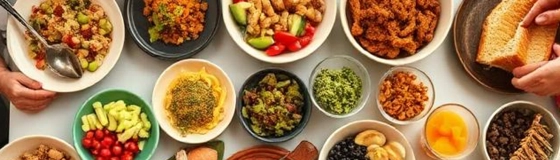
The Potluck template is the answer to the “five people brought potato salad and nobody brought drinks” problem. You list categories — drinks, salads, mains, desserts, things to grill — and guests claim what they will bring, with quantities. 7,749 potlucks ran in the last 12 months; the template peaks around Thanksgiving (Friendsgiving is one of its strongest sub-cases) and during summer barbecue season.
Use cases from real Whocan polls: Thanksgiving and Friendsgiving dinners, neighborhood block parties, school BBQs, church community lunches, office potluck Fridays, after-game team dinners, christening receptions, communion celebrations, beach picnics, ski-cabin weekends, post-rehearsal cast parties.
What voters do. They see a list of items (you set them up — “Dessert: 1”, “Salad: 2”, “Soft drinks: 6”, “Beer: 1 case”). For each item they can add their own contribution with a quantity: “Anne — 1 chocolate cake”, “Tom — 2 dozen cookies”. Voters can register multiple people if you turn that on — useful when “we’re bringing for the whole family of four”.
Option type: textAndNumber_textAndNumber with multipleSecondaryAnswers: true — a single voter can claim several items, each with its own quantity. This is the most distinctive option type in Whocan and what makes the potluck template more than just a text list.
Default settings:
- Theme: potluck — food-themed visuals
- Show event date (when): on — when is the potluck happening
- Multiple persons + kids + vegetarians: all on (kids off by default, but available with one click) — useful when you need to know head count alongside who brings what
- Show participants: on — everyone sees who brought what
- Private comments: on
- Location (first step): on — set the venue when creating
Available advanced settings:
- Theme picker (potluck or any other generic theme, plus custom background upload)
- Respond till: sign-up deadline
- Get notifications: email when someone signs up for an item
Compared to SignUpGenius / Perfect Potluck / Signup.com: the printable-template ecosystem (PDF sheets, generic sign-up tools) gets the basic “who brings what” right but requires guests to sign in or hits paywalls on extras. Whocan does it free, with no account for guests, with quantities tracked per item, with custom backgrounds, and with everything online — no PDF to print or update.
More about Potluck Sign-up Sheets → · Thanksgiving Potluck → · Friendsgiving Potluck → · Christmas Potluck →
4. Doodle Poll — the classic table format
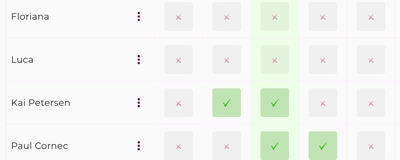
The Doodle Poll template gives you the matrix layout people know from Doodle: dates as rows, voters as columns, check marks in the cells. 6,132 of these ran in the last 12 months. The same time-finding job as the Scheduling Poll, but in a different visual layout — and with the option to mix date suggestions with text suggestions in the same poll.
Use cases from real Whocan polls: team standup time selection, language-class scheduling across cohorts, parent committee meetings, distributed-team planning sessions where one column-per-voter is easier to read than a list of dates, classic Doodle-style “pick the best 3” rounds.
What voters do. They see a matrix. Rows are the suggested dates or text options, columns are the people who have already voted, and the rightmost column is them. They tick the slots they can make, optionally mark “maybe”, and the matrix updates live for everyone. Voter names and emails are visible in the column headers when “show participants” is on.
Option types: date (date with check box) and text (text item with check box). The two can be mixed in a single poll — useful for “either of these three dates, or alternatively the location proposal in row 4”.
Default settings:
- Form layout: matrix (this is the defining setting of the template)
- Theme: no-theme — neutral, focused on the data
- Maybe / If necessary: on
- Show participants: on — names visible in column headers
- Allow to add options: off — only the host edits the matrix
Available advanced settings:
- Privacy: turn off
show participantsto anonymize voter columns - Time zone: full IANA support, inherited from the Scheduling Poll engine
- Respond till: voting deadline
- Theme picker: if you want a styled matrix instead of plain
- Recurring rows / bulk edit: turn one date row into a daily / weekly / biweekly / monthly series, or bulk-edit several rows at once (date, time, label, cap)
Compared to Doodle itself / Crab.fit / Rallly: the matrix layout is what people search for as “Doodle”. Whocan does the same matrix, account-free, ad-free, and gives you the option to switch the same poll into the Scheduling Poll list view if matrix gets cramped. Doodle’s free tier is heavily ad-supported and pushes accounts.
More about the free Doodle alternative → · Scheduling Poll → · Doodle review →
5. Class Booking — slot-based registration with caps

The Class Booking template (also called “Participation”) solves the case where you offer several slots and need each slot to have a maximum head count. 3,254 of these ran in the last 12 months.
Use cases from real Whocan polls: yoga and pilates studio class booking, language-course session enrollment, kid’s swimming lessons, parent-teacher conference sign-ups (each slot is a 10-minute appointment), kindergarten parent-volunteer shifts, sports-club training sessions, museum group tours, workshop registrations, school project sign-ups, doctor’s office demo slots.
What voters do. They see a list of slots (each is a date or named session). For each slot they click “I’ll join”. A counter shows “3 of 6 spots left”. When a slot is full, the button is disabled and they pick a different one.
Option type: date_willJoin — date with an “I’ll join” registration. The only option type with a hard participant cap per option, which is exactly what class booking needs.
Default settings:
- Theme: people-register — a registration-styled visual
- Show participants: on — voters see who has registered for each slot
- Max participants per option: on — the host sets the cap (e.g. “max 8 per yoga session”)
- Multiple persons: off by default (each slot counts as one person), but switchable on for “I’ll bring my daughter too” scenarios
Available advanced settings:
- Location (per the venue): for a single-venue series of classes
- Respond till: cut-off for registrations
- Theme picker and custom backgrounds
- Get notifications for the host when a slot fills up
- Private comments for special requests (“I have a knee injury”)
- Recurring sessions / bulk edit: repeat a single class slot as a daily / weekly / biweekly / monthly series (up to 52 occurrences) — useful for term-long yoga programs or language-course series — and bulk-edit multiple slots in one save
Compared to Eventbrite / SignUpGenius / Cognito Forms: Eventbrite is built for ticketed public events with payment processing — overkill for a free yoga session sign-up. SignUpGenius has caps per slot but pushes accounts and a paid tier. Whocan keeps it simple: free, no account for voters, cap per slot, registration list visible to the host.
More about Event Registration → · Sign-up sheets →
6. Online Poll — opinions, surveys and feedback

The Online Poll template is the one that doesn’t involve dates or events at all — pure opinion gathering. 1,878 of these ran in the last 12 months. They have the highest engagement of any template in Whocan (4.8 votes per active poll on average), which makes sense: voters answer because they’re already curious about the result.
Use cases from real Whocan polls: “which logo should we go with?”, workshop feedback (“how clear was the explanation, 1 to 10?”), restaurant choice for a team lunch, employee pulse surveys, course evaluations by students, parent-council issue polls (“how important do you find X?”), club committee decisions, neighborhood association opinion gathering, friend-group “what shall we watch tonight” polls.
What voters do. Depends on the question type the host set up — voters might:
- drag a slider on a 1-to-10 linear scale (Likert-style),
- tick several check boxes from a list,
- pick exactly one radio option,
- pick from a dropdown,
- write a free-text answer.
Voters can stay anonymous — showParticipants is off by default on this template, the opposite of every other one. That’s deliberate: for opinion polls you usually want unbiased answers, not a public record of “Alice voted 3, Bob voted 7”.
Option types — the full survey toolkit:
text_slider— a question with a 1-to-N linear scale (this is the Likert / linear-scale feature)checkboxes— a question with multi-select answersradio— a question with single-select answersdropdown— a question with a dropdown selectortext_text— a question with a free-text answer
All five can be combined in the same poll. A real-world survey on Whocan often mixes “rate this on 1 to 10” with “which of these features did you find useful (check all)” and “anything else? (free text)”.
Default settings:
- Theme: human-hands — survey-styled visual
- Show participants: off — answers are anonymous to other voters by default
- Multiple persons: off — each voter is one voter
- Allow to add options: off — the host designs the survey
- Ask for name: available but off by default — survey can be fully anonymous, or you can turn name collection on
Available advanced settings:
- Ask for name / email / phone: turn any of these on if you need to identify voters
- Respond till: survey deadline
- Choose theme and custom background
Compared to Google Forms / SurveyMonkey / Typeform / StrawPoll: Google Forms is the closest functional match but pushes voters into a Google account for some features and lives inside Google’s ecosystem. SurveyMonkey and Typeform are powerful but paywall the useful features (more than 10 responses, branching logic, exports). StrawPoll is free but does only single-question polls. Whocan does the multi-question survey case in the free tier without a Google account and without ads in the survey itself.
More about the free Online Poll Maker →
7. Assign Tasks — share a list of responsibilities

The Assign Tasks template (also called “Duties”) is the answer to “who’s doing the music, who’s bringing the tables, who’s cleaning up”. 1,460 of these ran in the last 12 months, often paired with an Invitation or Potluck poll.
Use cases from real Whocan polls: wedding-day task allocation (decoration, music, photography, transport), school-event setup and teardown, volunteer rota for sports clubs, moving-day tasks, party-prep duties, office event committees, kindergarten parent contributions (“who bakes the muffins, who reads to the kids”), shared apartment cleaning rotation, scout-group expedition prep.
What voters do. They see a list of tasks. For each task they tick the box to claim it. If you turned on “allow to add options” (it’s on by default for this template), voters can suggest new tasks themselves — useful for shared planning where you don’t know all the tasks up front.
Option types: date (a task with a deadline) and text (a task without a deadline). The two can be mixed: “Book the venue (by 1 March)” alongside “Bring the playlist (any time before)”.
Default settings:
- Theme: duties — checklist-styled visual
- Show participants: on — voters see who’s done what
- Allow to add options: on — voters can add tasks themselves
- Show description: on — each task can have a longer description (“which playlist”, “where to pick up the chairs”)
- Show max participants per task: on — useful when 2 people are needed for a heavy task
- Private comments: on — voters can attach a comment to their claim
Available advanced settings:
- Respond till: all tasks claimed by date X
- Location in the header
- Theme picker and custom backgrounds
- Get notifications: organizer email when a task is claimed
- Bulk edit / recurring tasks: select multiple tasks and change descriptions, deadlines or caps in one save; for date-bound tasks, repeat as a daily / weekly / biweekly / monthly series
Compared to Trello / Asana / Google Sheets: the project-management tools assume an existing account, a team, and a workflow. They are overkill for “five people getting ready for a party”. A shared Google Sheet works but loses the “claim it with one click” UX. Whocan keeps it lightweight — a single link, no account, claim-by-click.
8. Group Order — collect everyone’s food order

The Group Order template is the smallest of the nine in volume, but the cleanest job-to-be-done. The host lists items (typically food or drinks), each voter picks what they want and a quantity, and the host gets the full aggregated order.
Use cases from real Whocan polls: Friday team pizza orders, office lunch ordering from a single restaurant, family takeaway nights, group orders for sports-club merchandise, summer-camp snack rounds, conference catering inputs, dorm-floor coffee runs, post-rehearsal dinner orders.
What voters do. They see the menu (the items you set up). For each item they want, they pick it and enter a quantity (“Margherita pizza — 2”, “Coke — 1”). The host sees the full order rolled up.
Option type: text_textAndNumber — a text item from a list plus a numeric quantity per voter. Voters cannot add new items themselves (that would defeat the “one fixed menu” use case).
Default settings:
- Theme: pizza — food-order visual
- Show participants: on — host sees who ordered what
- Private comments: off by default — quick orders, no chatter
- Multiple persons: off
- Allow to add options: off — fixed menu
Available advanced settings:
- Theme picker if you want to switch from pizza to spaghetti or your own image
- Respond till: order deadline
- Choose your own dashboard layout
Compared to Slack polls / Google Forms / WhatsApp polls: the chat-app polls do single-choice “which restaurant”, not item-plus-quantity orders. Google Forms can do it but requires you to design the form. Whocan’s Group Order is the pre-built version: list your items, share the link, get the order back already aggregated.
9. Advanced — full control over every setting

The Advanced template is what all the others inherit from. It exposes every setting Whocan has and lets you combine every answer format. You’d use it when no specialized template fits your case — or when you want to combine elements from several (a date poll with a sign-up sheet and free-text comments and a Likert-scale rating).
Use cases: mixed-mode polls that combine elements no single specialized template covers — for example a poll that needs a date selection, a slot booking with cap, and an item-with-quantity list (think: “pick a workshop date, register kids, and tell us which snacks to bring”); team retros with mixed feedback and time selection; class trips with combined registration, dietary inputs, and parent-volunteer signup.
What voters can do — every interaction type the engine supports:
- date with check box
- date with “I’ll join” registration and cap per slot
- text item with check box
- text item with free-text answer
- text item with Likert / linear-scale slider
- text item with quantity (Group Order pattern)
- text item with multiple quantity-entries per voter (Potluck pattern)
- check-boxes question (multi-select)
- radio question (single-select)
- dropdown question
- visual divider (just a section break, no answer needed) — only available here
Settings — all of them are available:
- Identity: title, short description, long description, language
- Sharing: access link, send-by-email, QR code, share dialog
- People asked: name, email, phone (each independently required or not)
- When and where: event date with full IANA time zone, single-day / multi-day / all-day / open-end, event location written into the iCal export
- Voting structure: multi-person registration (adults / kids / vegetarians), max participants per option, voter-added options, yes/no/maybe answer
- Communication: private comments to organizer, public comments visible to all, organizer notifications, voter-subscribed update notifications
- Privacy: show or hide who voted
- Design: theme picker (8+ themes), font family, color palette, background image upload, separate desktop/mobile background sizing, card shadow style
- Deadline: respond-till
- Layout: matrix or list voting form
- Stepper: 5-step creation wizard
- Editing tools: repeat a date option as a daily / weekly / biweekly / monthly series (up to 52 occurrences); bulk-edit multiple options at once (date, time, label, description, cap)
- Vote management: edit any vote in place (name, choices, comments, multi-person counts), tag votes with a host-only flag, add votes on behalf of someone who replied off-platform
This is also the template you’ll land on if you ever export a poll via CSV or use the iCal calendar export — those features work across the engine but show up most visibly here.
When to use Advanced: when the question you’re asking doesn’t fit one specialized template, when you want a poll that combines mechanics from several templates, or when you want to start with a clean slate and configure everything yourself.
Which template do I pick?
The fastest way is by question.
| If your situation is… | The right template is |
|---|---|
| ”When can we meet?” — pick from several dates | Scheduling Poll |
| Same as above, but you want the Doodle matrix layout | Doodle Poll |
| One event, one date, RSVP needed | Invitation |
| Birthday, wedding, baby shower with online RSVP | Invitation (with the right theme) |
| “Who brings what?” — items with quantities | Potluck |
| Several time slots, each with a max head count | Class Booking |
| ”Pick the music for our team dinner” or any opinion-gathering | Online Poll |
| Same as above but you want sliders / Likert scales | Online Poll |
| ”Who does what?” — task list with claims | Assign Tasks |
| ”Place your pizza order” — pick-an-item-with-quantity | Group Order |
| Mixing several of the above in a single poll | Advanced |
Three combinations come up often enough to mention:
- Invitation + Task Assignment — sister polls for the same event. The invite goes to all guests, the task list goes to the inner organizing group. Whocan lets you create both and link them in the description.
- Scheduling Poll + Invitation — first you find the date, then you send the invitation. The Scheduling Poll’s iCal export feeds straight into the Invitation’s “when” field.
- Potluck + Invitation — for a dinner party. The invitation handles RSVPs and dietary preferences, the potluck handles who brings what.
Frequently asked questions
What is a poll template? On Whocan, a poll template is a pre-configured combination of answer types, default settings and visual theme that fits one specific situation. All nine templates run on the same underlying engine — they just expose different parts of it. You can always switch a template into Advanced mode to access settings the specialized template hides.
Are all poll templates really free? Yes. Every template on Whocan is free — no paid tier, no premium upgrade, no per-guest fees. Whocan runs on ads on landing pages (not inside polls themselves) and on the assumption that some users will tell others about it. Over 57,000 polls ran on Whocan in the last 12 months without anyone paying for them.
Do I need an account to create a poll? No. You can create a poll, share it, collect responses and never sign up. We give you a personal access link (a secret URL) so you can come back to the poll later from the same browser or any other device. If you do sign up, the access link gets attached to your account, but the work flow is identical otherwise.
Do participants need to register to vote? No. They click the link, see the poll, vote, done. Some templates ask for a name or email if you turn that setting on, but no template requires participants to create an account.
Can participants vote anonymously? On the Online Poll template, the default is anonymous — voters’ names are not shown to other voters. On every other template you can switch “show participants” off to hide names. The poll creator always sees who voted what.
What’s the difference between the Scheduling Poll and the Doodle Poll? Same underlying engine, different visual layout. Scheduling Poll uses a list (rows of dates, voters click the dates they can make). Doodle Poll uses a matrix (rows of dates, columns of voters, ticks in the cells). Pick whichever feels more natural for the group. You can also switch between the two layouts inside one poll without recreating it.
Can I switch templates after creating a poll? You can switch any template into Advanced mode at any time and configure settings the specialized template hides. Switching between two specialized templates (say, Invitation to Potluck) isn’t supported directly because their option types are incompatible — but you can start a new poll and copy what you need over.
Can participants add their own options? On some templates yes, on others no. On the Scheduling Poll, Assign Tasks, Doodle Poll and Potluck templates voters can add new options themselves if you keep the setting on. On the Class Booking, Invitation, Group Order, Online Poll templates the answer set is fixed by the host. This isn’t an arbitrary policy — some option types (sliders, radios, dropdowns, slot bookings with caps) wouldn’t make sense if voters could add new ones.
Can I limit the number of participants per option? Yes, on the templates where it makes sense — Class Booking (this is its core feature), Scheduling Poll, Doodle Poll, Invitation, Potluck, Assign Tasks. On the Online Poll and Group Order templates per-option caps don’t apply.
Can I see who voted what? You as the host always see everyone’s answers. Whether other voters see them depends on the “show participants” setting. It’s on by default for most templates (Invitation, Potluck, Scheduling Poll, Class Booking, Assign Tasks, Doodle Poll, Group Order) and off by default for the Online Poll template.
Can I export the results? Yes. CSV export of all responses is available via the results dashboard. For date-based polls, every winning date can be exported as an ICS file so voters can add the event to Google Calendar, Outlook, or Apple Calendar.
Is there a participant limit per poll? No hard cap. Whocan polls in the last 12 months ranged from 3 voters (the median) to over 100 (the top percentile). Most polls have 3 to 10 voters; the tool handles bigger groups fine.
Does it work across time zones? Yes. The Scheduling Poll, Doodle Poll, Class Booking and Invitation templates support full IANA time zones. Voters in other zones see a “this event is X hours from your time” hint while voting.
Can I add a Whocan poll result to my calendar? Yes, for date-based polls — once the winning slot is picked, every voter can download an ICS file with the event, location and description and import it into Google Calendar, Outlook, or Apple Calendar.
Try it yourself
Every template above is one click away. Start a poll with no signup:
If something doesn’t fit the templates we have — write to us. We’ve built Whocan around the situations real people told us about, and the next template comes from the same place. Most of the nine you just read about started as someone saying “I wish there was a tool that…”.